Photographer
Photographer is an optional plugin for Observatory which manages screenshots taken by the user, allowing them to be automatically renamed and organized based on screenshot metadata.
It can also apply some simple post-processing, including resizing, addition text captions, or applying a watermark.
Additionally Photographer can embed the Elite Dangerous metadata into the EXIF data of the screenshot, allowing for other tools to read and make use of it, or simply to retain the information for later reference by the user.
Note: New feature releases of Photographer are made available to patreon members (opens in a new tab) first before later general release to all.
Installation
- Download the latest version of Photographer from its release page.
- Installed: Double-clicking the .eop file should automatically install the plugin. If this does not work, you can manually use the "portable" installation method.
- Portable: Add ObservatoryPhotographer.eop to the plugins folder located in the same location as Observatory's executable.
- When starting Observatory, if successful, there should be a Photographer tab along the top.
Usage
Photographer's main interface is comprised of a thumbnail view of screenshots on the left, a metadata panel on the right, and the "Process" button at the bottom which is used up edit the processing settings and to manually process the currently selected image, if desired.
By default screenshots are processed automatically with a simple rename and convert to PNG when they are taken and monitoring is active.
Settings
Like other plugins, Photographer's settings are accessed by right-clicking the "Photographer" tab at the top of the Observatory window, or via the right-hand button in the plugin list on the core tab.
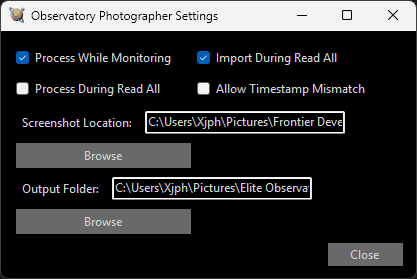
- Process While Monitoring: When enabled will automatically process any screenshot taken while monitoring is active using your currently configured default processing settings.
- Import During Read All: When enabled will read all avaliable screenshots when the "Read All" button is pressed. This does not process the images, but will add them to the thumbnail view and allow you to select and process them manually if desired.
- Note: Screenshots imported in this way will not have complete metadata available.
- Process During Read All: When enabled will automatically process any screenshot imported during the "Read All" operation using your currently configured default processing settings.
- Note: This is a potentially intensive operation and may take a significant amount of time to complete if you have a large number of screenshots. It will automatically disable itself after running to prevent unnecessary repeat processing.
- Allow Timestamp Mismatch: By default, Photographer will only process screenshots if the timestamp of the file matches the timestamp of the screenshot event in the journal. This prevents incorrect metadata from being associated with images when the filenames used by Elite Dangerous are reset (e.g. after you clean out your screenshot directory).
Enabling this option will allow processing to occur even if these timestamps do not match, which can be useful in cases where the file timestamp is being modified by some other process (e.g. cloud syncing), but may cause some incorrect metadata to be associated with images. - Screenshot Location: The location where your original Elite Dangerous screenshots are saved. This should default to the correct location but can be changed if necessary.
- Output Folder: The location where processed screenshots will be saved. By default this will be an "Elite Observatory Screenshots" folder inside your Pictures folder.
Process Window
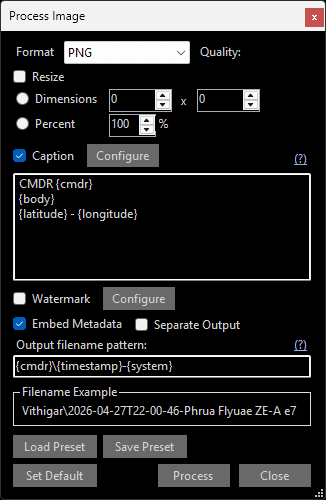
The process window allows you to configure the processing settings to be applied to screenshots.
- Format: The file format to save the final image in. Available options are PNG, JPEG, WEBP, HEIC, and BMP. Note that not all formats support all features, notably metadata embedding may not work for formats other than PNG and JPEG.
JPEG, WEBP, and HEIC formats additionally allow you to specify the quality level to use. PNG, JPEG-XL*, and BMP are lossless formats and do not have a quality setting.
*JPEG-XL does support lossy compression but this is not implemented by Photographer. - Resize: When enabled will resize the image to the specified dimensions. You can choose to resize to a specific width and height, or scale to a percentage of the original size.
- Caption: When enabled will add the specified text to the image. You can specify the font, size, color, and position of the text. Placeholders for metadata values are available.
- Watermark: When enabled will overlay a supplied image at the selected position.
- Embed Metadata: When enabled will embed the metadata from the screenshot and status events in the journal into the image using a format appropriate to the selected file format. This allows other tools to read and make use of this information, or simply for it to be retained for later reference by the user. Note that metadata embedding may not work, or may lack widespread support for reading it back, for formats other than PNG and JPEG.
- Separate Output: Outputs the composited portions of the image (caption and watermark) as a separate transparent image alongside the main processed image. This allows you to retain a clean version of the original screenshot with metadata embedded and resized for other uses.
- Output Filename Pattern: The pattern used to generate the output filename. Similar to captions, placeholders for metadata values are available.
The use of directory separators in the pattern is supported, and the specified directories will be created if they do not already exist. This allows you to automatically organize your screenshots into folders based on their metadata (e.g. by system, date, etc.). - Load Preset: Loads a previously saved preset of processing settings.
- Save Preset: Saves the current processing settings as a preset that can be loaded later.
- Set Default: Sets the current processing settings as the default that will be applied when processing occurs automatically (e.g. when a screenshot is taken while monitoring is active, or when "Process During Read All" is enabled).
- Process: Processes the currently selected image using the current settings. If no image is selected this will just let you manage saved presets.
Caption Setup
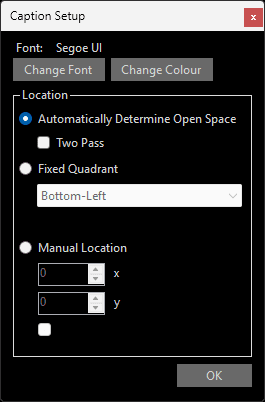
The caption setup window allows you to configure the settings for placing and formatting a text caption in the image.
- Change Font: The font to use for the caption text.
- Change Colour: The colour of the caption text.
- Location: Several options for how to select the location are available.
- Automatically Determine Open Space: Will attempt to find an area of the image with no significant features to place the caption.
- Two Pass: Enabling this will run the open space detection twice, once to find the quadrant of the image with few features, and then again inside that quadrant to find the least cluttered quarter of that area.
- Fixed Quadrant: Will place the caption in the specified quadrant of the image (top-left, top-right, bottom-left, bottom-right).
- Second Order: Divides the images in a 4x4 grid of "second order quadrants" and allows you to select one of those 16 areas for caption placement.
- Manual Location: Allows you to manually specify the exact X and Y coordinates for the caption placement.
- Relative: When enabled, the X and Y coordinates will be percentages relative to the dimensions of the image rather than specific pixel values.
- Automatically Determine Open Space: Will attempt to find an area of the image with no significant features to place the caption.
Watermark Setup
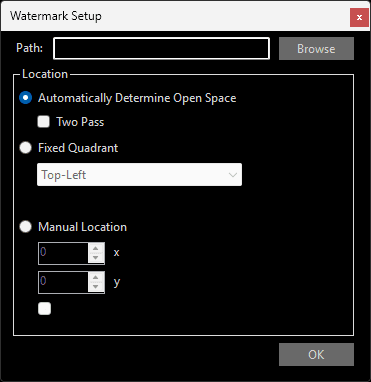
The watermark setup window allows you to configure the settings for overlaying another image onto the image.
- Watermark Image: The image to use as the watermark. Ideally something with a transparent background to composite nicely into the image, but this is not strictly required.
PNG, JPEG, HEIC, WEBP, BMP, GIF, and AVIF are supported. - Location: The options for selecting the location are the same as for captions.
Save/Load Preset
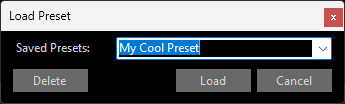
Allows you to save, load, and delete presets for processing settings.
To save a preset simply enter a name for the preset and click "Save". Conversely, to load a preset select it from the dropdown (or type its name) and lick "Load". To delete a preset select it from the dropdown and click "Delete".
Metadata Placeholder Tokens
When configuring captions or output filename patterns, you can use placeholders for metadata values by enclosing the name of the metadata field in curly braces. For example, {system} would be replaced with the name of the system where the screenshot was taken.
The (?) link next to the caption input and output filename pattern inputs will show a list of available metadata fields that can be used as placeholders and allow you to quickly select them by clicking to insert into your text.
Available tokens are:
- Screenshot Metadata Fields (always available):
{cmdr}- Commander name{latitude}- Latitude coordinate{longitude}- Longitude coordinate{latitudeDMS}- Latitude in D°M'S\ format{longitudeDMS}- Longitude in D°M'S\ format{system}- System name{body}- Body name{altitude}- Altitude{heading}- Heading direction{timestamp}- ISO timestamp (YYYY-MM-DDTHH-MM-SS){timestamp:FORMAT}- Custom formatted timestamp
- Status Metadata Fields (only available when screenshot was imported while monitoring):
{guifocus}- Current GUI focus{balance}- Credit balance{cargo}- Cargo amount{mainfuel}- Main fuel level{reservoirfuel}- Reservoir fuel level{health}- Health percentage{oxygen}- Oxygen percentage{destination}- Destination name{gravity-g}- Gravity in G{gravity-mps2}- Gravity in m/s²{legalstate}- Legal state{radius}- Planet radius in km{temperature}- Temperature{hud}- HUD mode (Analysis/Combat){docked}- Docked/Undocked{landed}- Landed/In Flight{landinggear}- Landing gear (Down/Raised){shields}- Shields (Up/Down){supercruise}- Supercruise/Normal Space{faoff}- Flight assist (On/Off){hardpoints}- Hardpoints (Deployed/Retracted){wing}- Wing/Solo{lights}- Lights (On/Off){cargoscoop}- Cargo scoop (Deployed/Retracted){silentrunning}- Silent running status{fuelscooping}- Fuel scooping status{srvbrake}- SRV brake (On/Off){srvturret}- SRV turret (Active/Fixed){srvproximity}- SRV proximity (Close/Clear){srvdriveassist}- SRV drive assist (On/Off){masslock}- Mass lock status{fsdcharging}- FSD charging/idle{fsdcooldown}- FSD cooldown/ready{lowfuel}- Low fuel warning{overheat}- Overheat warning{latlongvalid}- Lat/Long validity{indanger}- In danger status{interdiction}- Interdiction status{mainship}- In main ship{fighter}- In fighter{srv}- In SRV{nightvision}- Night vision (On/Off){radialaltitude}- Altitude mode (Radial/Terrain){fsdjump}- FSD jumping status{srvhighbeam}- SRV high beam (On/Off){onfoot}- On foot status{intaxi}- In taxi status{inmulticrew}- In multicrew{onfootinstation}- On foot in station{onfootonplanet}- On foot on planet{aimdownsight}- Aiming down sight{lowoxygen}- Low oxygen warning{lowhealth}- Low health warning{cold}- Cold status{hot}- Hot status{verycold}- Very cold status{veryhot}- Very hot status{glidemode}- Gliding status{onfootinhangar}- On foot in hangar{onfootinsocialspace}- On foot in social space{onfootexterior}- On foot exterior{breathableatmosphere}- Breathable atmosphere{telepresencemulticrew}- Telepresence multicrew{physicalmulticrew}- Physical multicrew{fsdhyperdrivecharging}- FSD hyperdrive charging